This year marks 30 years of SOLIDWORKS, continuing its legacy of ease of use; it remains a user-driven solution for design and engineering professionals. The new release drops in November, and I’m excited to tell you about some of the top features in SOLIDWORKS 2026. From AI-powered design and detailing to selective loading of assembly components, and more, learn about the latest developments in SOLIDWORKS Design solutions.
All enhancements apply to SOLIDWORKS Design solutions, unless stated otherwise.
AI-POWERED ENHANCEMENTS
Accelerate documentation and assembly design with AI-powered drawing automation and fastener recognition.
Automatic Drawing Creation
Automatically create drawing sheets with views and proposed dimensions with the simple click of a button, using the Auto-Generate Drawing (Beta) command under the New menu. Once enabled, this will automate drawing creation with automatic hole recognition for native SOLIDWORKS or imported geometry. In addition, this functionality will ensure your views are automatically arranged and match the sheet format industry standard to the part or assembly industry standard.
Automatic Fastener Recognition and Assembly
This enhancement is one of my favorites. When inserting components into assemblies, SOLIDWORKS automatically recognizes components that appear to be nuts, bolts, or washers as fasteners and then assembles them accordingly.
This capability also extends to non-toolbox components, enabling you to drop in parts that will automatically be snapped into place, saving you time from having to do each component separately.
ENHANCED LARGE ASSEMBLY FEATURES
Save time and resources when working with large assemblies with the following enhancements.
Selective Loading of Assembly Components
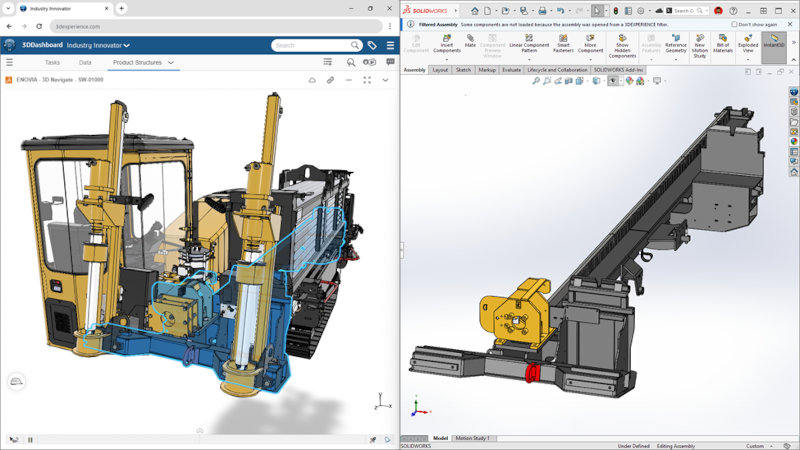
This one is a game changer, as you can selectively filter specific portions of your design from the 3DEXPERIENCE platform using component relationship visualization and advanced filters to find relevant parts. This helps speed up opening large assemblies and enables you to open only the components you want to work on, thereby reducing on-screen clutter.
Smarter Rebuild Recognition for Cosmetic Changes
Reduce assembly rebuild times by skipping rebuilds when only cosmetic changes are made to referenced components. A new Performance System option allows you to prevent unnecessary rebuilds, thereby improving overall efficiency.
Disable Auto-Resolve for Lightweight Components
Improve performance and save time when working with large assemblies with the ability to shut off auto-resolve and then open an assembly in Lightweight mode. Under System Options, click FeatureManager, then shut off the auto-resolve option, then go to Open, Lightweight, Open. When you expand your assembly in the feature tree, you can view your components faster and resolve them later, giving you greater control over when components are fully loaded.
IMPROVED USER EXPERIENCE
Maintain productivity and focus with enhancements that support uninterrupted work and efficient design.
Unplanned Offline Mode
We introduced offline mode a few years ago and have made the option to connect to Offline mode even easier. If you experience a connection loss while connected to the 3DEXPERIENCE platform, you’ll get a notification, and you can continue your work in SOLIDWORKS in Offline mode, without the need to save, exit and start a new session.
Simplified User Interface
Speed up your workflow with a more intuitive interface that displays the most commonly used commands, helping you focus on design, reduce distractions, and work more efficiently.
Enhanced Command Search
Make searching with the Command Search faster by adding a customizable set of keywords so you can easily find the commands you need. For example, you might add search terms such as DWG, blueprint, plan, etc., which would pull up the Make Drawing from Assembly command.
This is helpful for new users, those coming from different CAD systems, and a quick way for existing users to pull up a command.
STREAMLINED PART DESIGN
Simplify complex tasks, reduce setup time, and gain more control and flexibility throughout the design process with streamlined Physical Product creation, simpler definition of base and edge flange start and end points in sheet metal modeling, and faster sketching with easy square geometry creation.
Create Physical Products with Attributes
The SOLIDWORKS new document creation workflow has been improved so you can create Physical Products on the 3DEXPERIENCE platform directly. Similar to creating a SOLIDWORKS part, assembly, or drawing, you now have the option to create a Physical Product. In addition, you can fill in attributes such as project number, project name, manufactured/purchased part as part of the new workflow.
Define a Custom Start point for a Sheet Metal Base Flange
When creating edge flanges for sheet metal parts, you can now define the length of the edge flange using a sketch point. Gain greater flexibility in sheet metal design by using a sketch point to define the end of an edge flange, eliminating the need for workaround methods.
Create Squares with the Rectangle Command
Easily create squares using the Rectangle command by holding the shift key, automatically applying equal relations to the adjacent entities.
MORE FLEXIBILITY FOR ELECTRICAL, PIPE, AND TUBE ROUTING
Combined BOMs Across Multiple Routing Assemblies
In SOLIDWORKS Routing, you can create a more flexible Bill of Materials (BOM) for designs involving cable, wires, harnesses, fluid, and piping networks. This enhancement enables you to track the total lengths of cable or wire types across all subassemblies, as well as the individual lengths of cables and wires, while also providing combined counts of components.
Support for Assembly Clips
Route pipe, tube, and electrical paths using clips, mounts, or hangers placed in parts or assemblies, improving design flexibility.
CANTER CADD being ISO 9001:2015 certified, the best CAD training institute can make a candidate’s profile strong and eligible to grab the trending jobs in the market. Moreover, the courses are offered by highly skilled and trained professionals to offer valuable knowledge to the candidates.
Locate CANTER CADD – The Best ansys Training Institute in Hyderabad-Mehdipatnam-Ameerpet-Himayatnagar-Dilsukhnagar-Habsiguda-Boduppal-ECIL-Santoshnagar-Chandanagar-Alwal-Kukatpally-Secunderabad-Warangal-Hanamkonda, Bangalore-Marathahalli-BTMLayout-Electronic City-Yelahanka-Banashankari-JPNagar-Srinagar-Hulimavu-Chamrajpet-Horamavu-Vidyaranyapuram, Andhra Pradesh-Guntur-Nellore-Kurnool-Rajahmundry-Tirupati-Dwarakanagar-Vizag-Vijayawada, Delhi NCR-LaxmiNagar-RajendraPlace-Rohini-Adhchini-Kalu-Sarai-, Pune-Akurdi, Tamil Nadu-Coimbatore, Uttar Pradesh--Gazhiabad-Meerut, Kerala, , Mumbai, Nagpur